
Sign In to AlgoLedger
Sign in to AlgoLedger
Use the sign-in method connected to your AlgoLedger account. This guide will help you reach the Command Center without sharing private account information.
Before you start
Have the email address or username connected to your AlgoLedger account. If you normally use Google, use that same Google account.
Use the sign-in controls shown below.
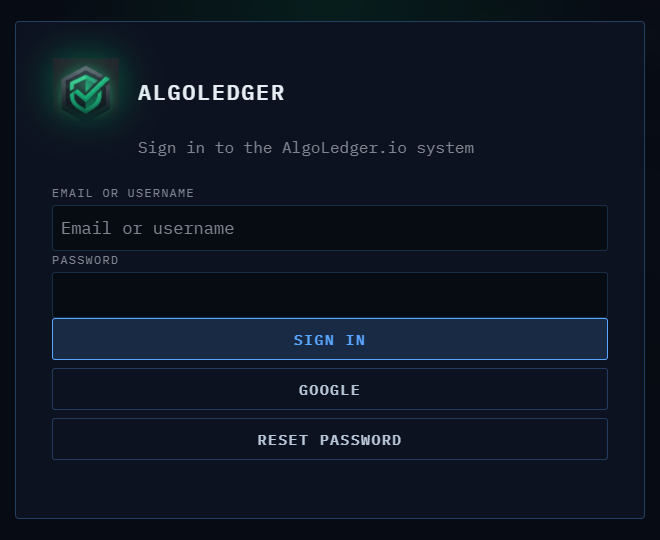
Figure 1. AlgoLedger sign-in controls: Email or username, Password, Sign in, Google, and Reset Password.
Sign in with your email or username
- Open the AlgoLedger sign-in page.
- Enter your account email address or username in Email or username.
- Enter your password in Password.
- Select Sign in.
- Wait for Command Center to open.
Sign in with Google
- On the same sign-in page, select Google.
- Choose the Google account connected to AlgoLedger.
- Complete Google's sign-in prompt.
- Wait for Command Center to open.
You are signed in successfully when the AlgoLedger navigation appears and Command Center opens.
If you cannot sign in
- If you forgot your password, select Reset Password and use only the newest reset email.
- If Google says there is no active AlgoLedger user for that email, stop and confirm that you selected the invited Google account.
- If you see a payment or disabled-account message, do not create another account. Contact Support so we can review the right account with you.
- If the page repeats or stays blank, refresh once. If it still does not open, send Support the exact message, the time and timezone, and your browser name.
We are happy to help. Contact support@mail.algoledger.io when the problem needs account-specific review. Never send your password, authentication code, reset link, or invitation link.