
Confirm Your Account Details
Confirm Your Account Details
Take a moment to confirm that AlgoLedger opened the account and workspace you expect. These values are read-only, so reviewing them will not change your account.
Review the Account summary
Use the Account summary shown below.
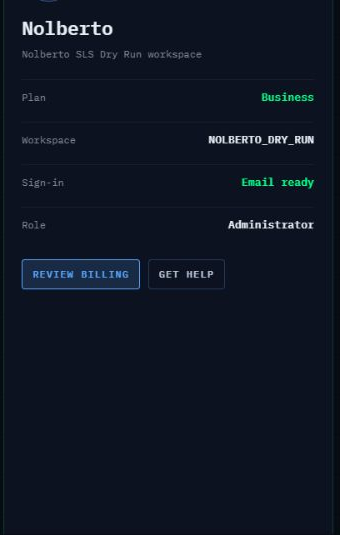
Figure 1. Account summary showing Plan, Workspace, Sign-in, Role, Review Billing, and Get Help.
- In the left navigation, select Account.
- Confirm the name and workspace description at the top of the Account summary.
- Check Plan to confirm the workspace plan you expect. To review your billing subscription, select Review Billing.
- Check Workspace to confirm the expected workspace code.
- Check Sign-in to confirm that account email access is ready.
- Check Role to confirm the access level you expect.
Your account check is complete when the name, workspace, plan, sign-in state, and role all match the account you intended to open.
Correct an account detail
- If Plan is wrong, select Review Billing and confirm the billing account before making any plan decision.
- If Role or team access is wrong, select Team Access and ask an authorized administrator to review access.
- If the name, Workspace, or Sign-in value is wrong, select Get Help so Support can review the correct account with you.
- If the wrong workspace opened, sign out and sign in once with the email connected to the intended workspace. Do not create a second account.
We are happy to help when an account value does not look right. Contact support@mail.algoledger.io and include the value you expected and the value shown. Never send a password, authentication code, reset link, broker credential, or payment information.