
Add Your First Strategy
Adding a strategy should end with a clear saved confirmation, not just an uploaded file. This guide takes you from baseline upload through the saved result.
Before You Start
Have a TradingView CSV or Edgeful XLSX baseline file no larger than 10 MB. Also have the Strategy Number, Strategy Name, Instrument, and Go-Live Date ready. Do not include passwords, authentication codes, or private credentials in the file.
Upload Baseline Results
Use the upload area shown below.
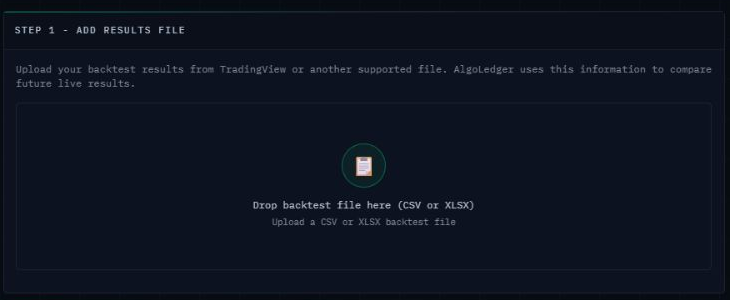
Figure 1. Add Results File accepts a TradingView CSV or Edgeful XLSX baseline file.
- In the left navigation, select Add Strategy.
- Under Step 1 - Add Results File, select Drop backtest file here (CSV or XLSX), then choose your baseline file.
- Wait for the file to finish parsing before entering or reviewing strategy details. Uploading alone does not save the strategy.
Confirm Strategy Details
Use the required fields shown below.
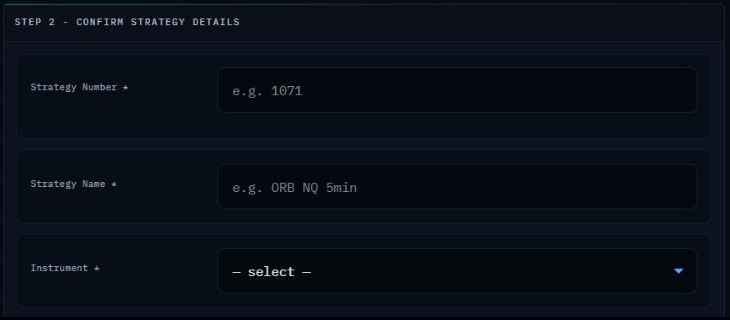
Figure 2. Step 2 collects the required strategy identity fields.
- Enter the Strategy Number.
- Enter the Strategy Name.
- Select the Instrument and confirm the Go-Live Date.
- Review every remaining required field. Profit Factor and Win Rate come from the uploaded baseline; do not invent values to clear a warning.
Review and Add the Strategy
Use Strategy Review and Minimum Standards to check the result before saving.
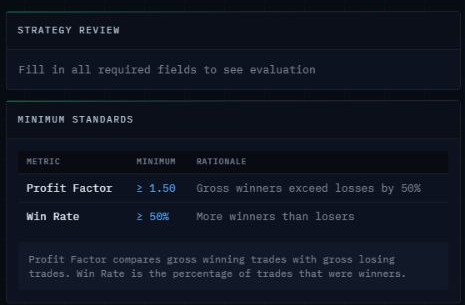
Figure 3. Strategy Review shows whether required information is ready for evaluation.
- Read Strategy Review and address every missing required field or visible warning.
- When the file and required fields are correct, select REVIEW & ADD STRATEGY once.
- Wait for the saved confirmation before leaving the page or trying again.
Success
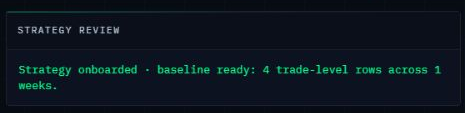
Figure 4. A saved strategy shows Strategy onboarded and baseline ready in Strategy Review.
The strategy is saved when Strategy Review shows Strategy onboarded and baseline ready. Open Command Center and confirm the strategy appears before repeating the process.
If Something Does Not Match
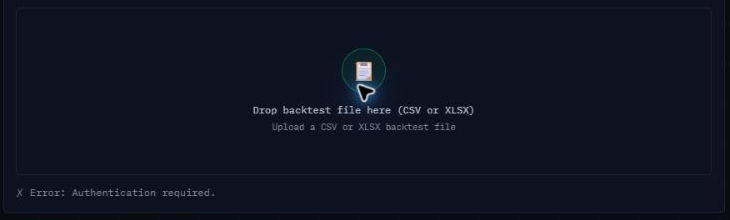
Figure 5. Authentication required means the upload was not accepted and must not be treated as saved.
If Authentication required appears, refresh once and sign in again if prompted. If the file type is unsupported, larger than 10 MB, or the parsed result is unclear, stop and contact Support. Send only the safe file name, file type, approximate size, and exact visible message. Never send the file if it contains private data, and never send a password, authentication code, or private credential.
Need Help?
Contact support@mail.algoledger.io. We will help verify the file, required fields, and saved result safely.