
Set Up Before You Have Live Trades
You can prepare AlgoLedger before your first live trading session. Set up the account, strategy, and baseline now, mark live trade tracking ready for later, and return after real completed trades exist.
Before You Start
Do not create placeholder trades. Have your account details, strategy details, and a genuine backtest or TradingView baseline available if you use one.
Complete Setup Without Live Trades
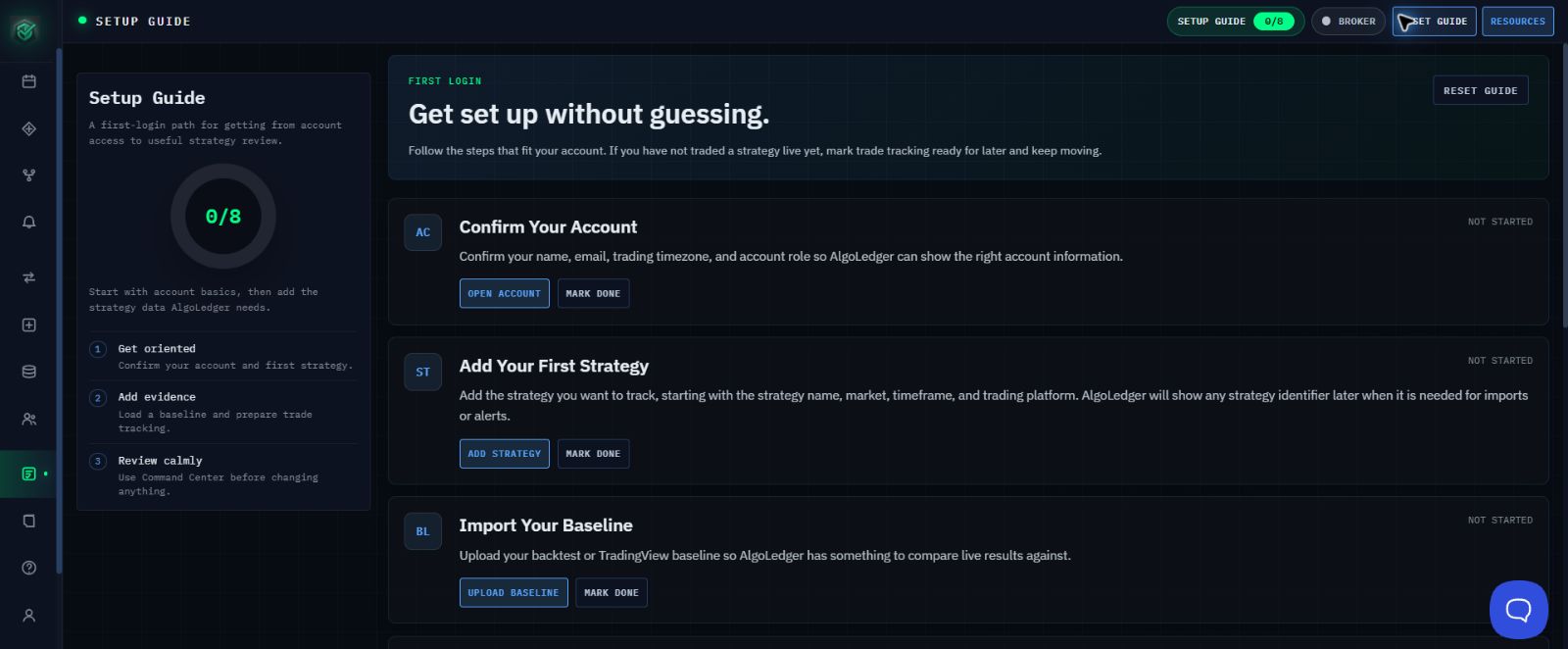
Figure 1. Setup Guide begins with account, strategy, and baseline work that does not require live trades.
- Open Setup Guide from the left navigation.
- Under Confirm Your Account, select OPEN ACCOUNT, confirm the account information, then return and select MARK DONE.
- Under Add Your First Strategy, select ADD STRATEGY, complete and save the real strategy, then return and select MARK DONE.
- Under Import Your Baseline, select UPLOAD BASELINE and upload the genuine baseline if one is available. Do not upload a fabricated trade file to make the row look complete.
Mark Live Tracking Ready for Later
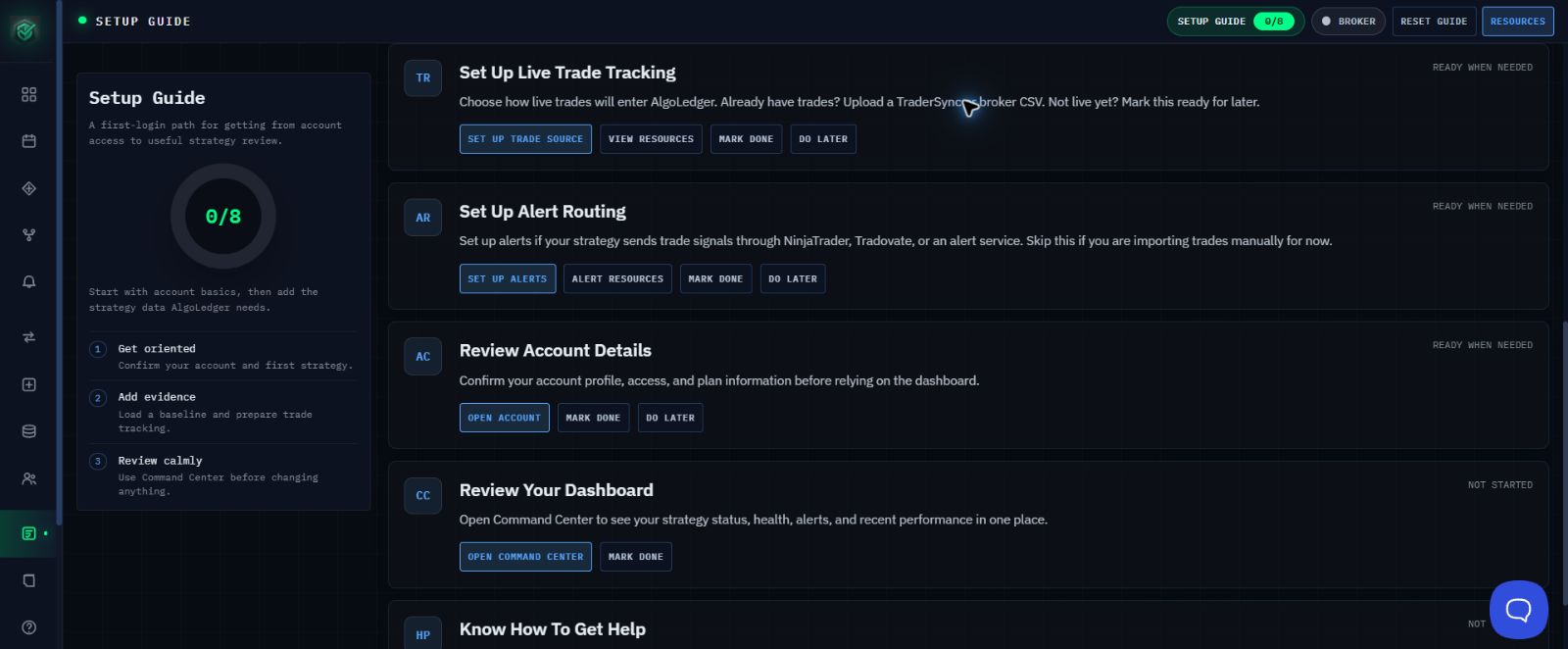
Figure 2. Set Up Live Trade Tracking provides DO LATER when the strategy is not live yet.
- Under Set Up Live Trade Tracking, select DO LATER. Do not select MARK DONE and do not upload placeholder trades.
- Under Set Up Alert Routing, select DO LATER only if you are importing trades manually for now.
- Under Review Account Details, select OPEN ACCOUNT and confirm the profile, access, and plan information. Select MARK DONE when the review is complete.
- Under Review Your Dashboard, select OPEN COMMAND CENTER and review the current strategy status, then return and select MARK DONE.
Success
Your account and strategy are prepared without false live-trade history. Setup Guide shows live trade tracking as ready for later, and Command Center shows the strategy using only genuine setup data.
After Your First Live Trades
Return to Setup Guide, select SET UP TRADE SOURCE, and use the correct import path for real completed trades. Keep baseline or test results separate from live-trade history.
If Something Does Not Match
If you cannot tell whether a file contains baseline, test, or live data, do not upload it. If DO LATER is missing or the progress state looks wrong, refresh once and contact Support with the row name and exact visible message. Do not send passwords, authentication codes, or private credentials.
Need Help?
Contact support@mail.algoledger.io. We will help you prepare the account without asking you to invent activity or expose secrets.