
Check Whether You Can Invite a Teammate
Inviting a teammate should begin with one simple check: whether your workspace and account are eligible to manage team access. This helps protect your workspace and prevents an invitation from being attempted from the wrong account.
Before You Start
Sign in to AlgoLedger with your own account. Never share a login, password, verification code, or invitation link.
Check Team Access
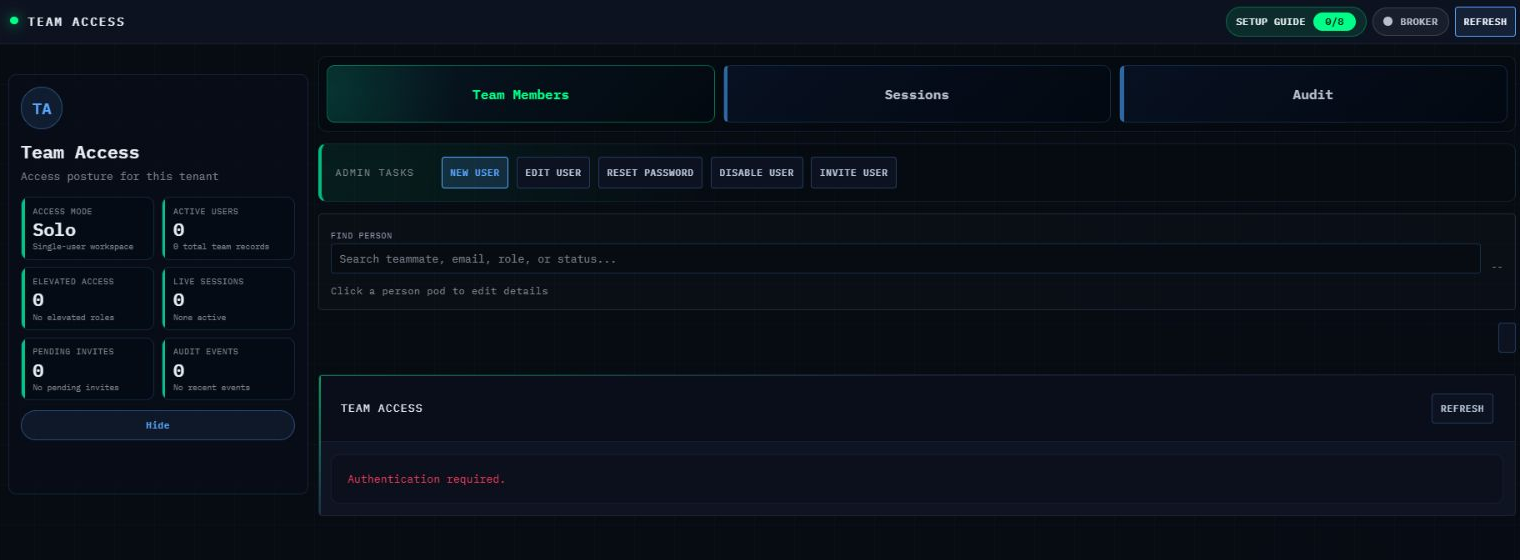
- Select Team Access from the left navigation.
- Open Team Members.
- Review Access Mode.
- Stop if the page shows Solo / Single-user workspace. That workspace is not confirmed as team-enabled by this view.
- Review Pending Invites to understand whether the page currently shows an outstanding invitation.
- Look for INVITE USER, but do not select it unless Support or your workspace administrator has confirmed that the workspace is team-enabled and your role is authorized to manage invitations.
- If the page shows Authentication required, complete the normal sign-in process before continuing. Do not send credentials or codes to anyone.
- If eligibility or authorization is unclear, open Help / Support and ask whether your workspace and role can invite a teammate.
- When contacting Support, include the workspace name, the Access Mode shown, and a redacted screenshot. Do not include passwords, verification codes, or private invitation links.
Confirm Success
This check is complete when you know whether the workspace is team-enabled and whether your role is authorized to manage invitations. The observed screen does not prove that an invitation was created, delivered, accepted, expired, revoked, or resent.
Need Help?
We will help you confirm the right access before any invitation is attempted. Contact Support with the workspace name, the displayed access mode, and what you are trying to help your teammate do.