
Request the Right Account Role
Access questions can be frustrating. This guide helps you review a teammate's current access and request the role they need, without guessing what a role name allows.
Review Team Access
Use the Team Access screen shown below.
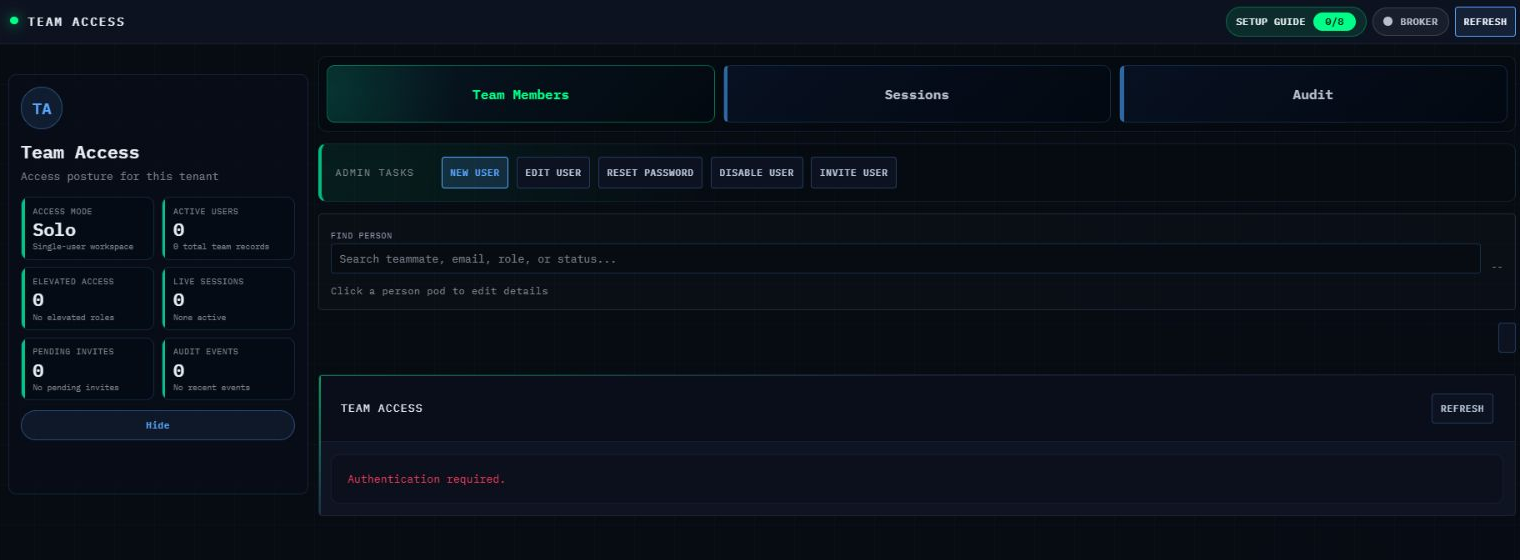
Figure 1. Team Access showing access posture, Team Members, Sessions, Audit, administrative tasks, and Find Person.
Steps
- In the left navigation, select Team Access.
- Review Access Mode, Active Users, and Elevated Access.
- Select Team Members.
- Use Find Person to search by teammate, email, role, or status.
- Select the person pod to review the current details.
- Write down the exact tasks the person needs to perform, such as uploading files, reviewing strategies, or handling support. Do not infer permissions from the role name alone.
Request or Change Access
- Send an authorized Owner or Administrator the teammate email, current role, required tasks, and the exact controls that are missing.
- Ask them to confirm which role grants only the tasks you listed. If they cannot verify the right role, contact Support before changing access.
- Use only the authoritative role names: Owner, Administrator, Database User, Trader, or Viewer.
- After an approved role change, have the person sign out and sign back in once.
- Confirm the required controls are visible and restricted controls remain unavailable.
Success
The access review is complete when the person can perform the approved tasks and no additional controls appear.
If Something Does Not Match
If Authentication required appears, refresh once. If it remains, contact Support. If expected controls are still missing, do not assign a broader role by guess. Send Support the teammate email, expected task, visible role, and exact missing control. Never send a password, authentication code, reset link, or invitation link.
Need Help?
Contact support@mail.algoledger.io. We will review the missing control with you and help route the request safely.