
Login Troubleshooting
Fix a Sign-in Problem
We know being locked out is frustrating. Follow the path that matches what you see, and stop after the recommended retry so your account stays protected.
Reset a forgotten password
Use the reset controls shown below.
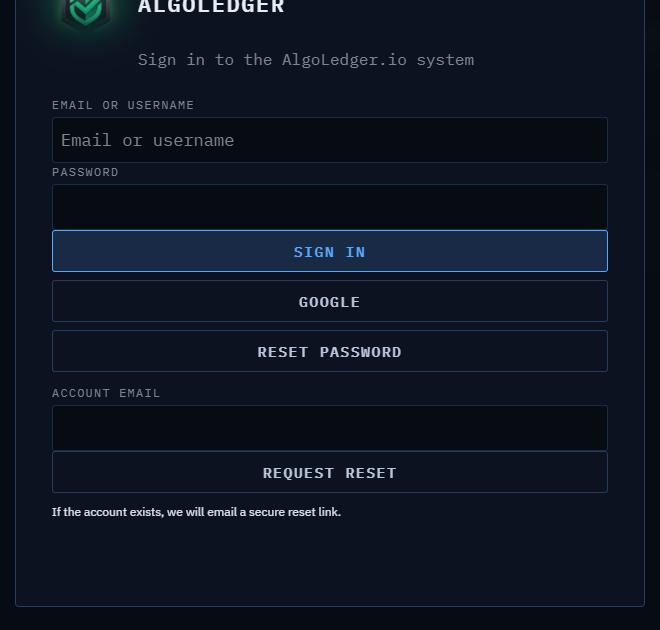
Figure 1. Password reset controls: Reset Password, Account Email, and Request Reset.
- On the AlgoLedger sign-in page, select Reset Password.
- Enter the email connected to your account in Account Email.
- Select Request Reset.
- Confirm that the page says, “If the account exists, we will email a secure reset link.”
- Open only the newest reset email and complete the reset.
- Return to the sign-in page and sign in with the new password.
The reset worked when AlgoLedger opens Command Center after you select Sign in.
If Google sign-in fails
- Return to the AlgoLedger sign-in page.
- Select Google.
- Choose the Google account that received AlgoLedger access.
- If you see “No active SLS user exists for this verified Google email,” stop. Do not create another account; confirm that you chose the invited email address.
If the page is blank or keeps redirecting
- Close other AlgoLedger tabs.
- Open one new browser tab and go to the sign-in page.
- Try your normal sign-in method once.
- If the same problem returns, stop retrying and contact Support.
When you contact us, include the exact message, the time and timezone, and your browser name. We will help you find the right next step. Contact support@mail.algoledger.io. Never send your password, authentication code, reset link, or invitation link.