
Import Trades from TraderSync
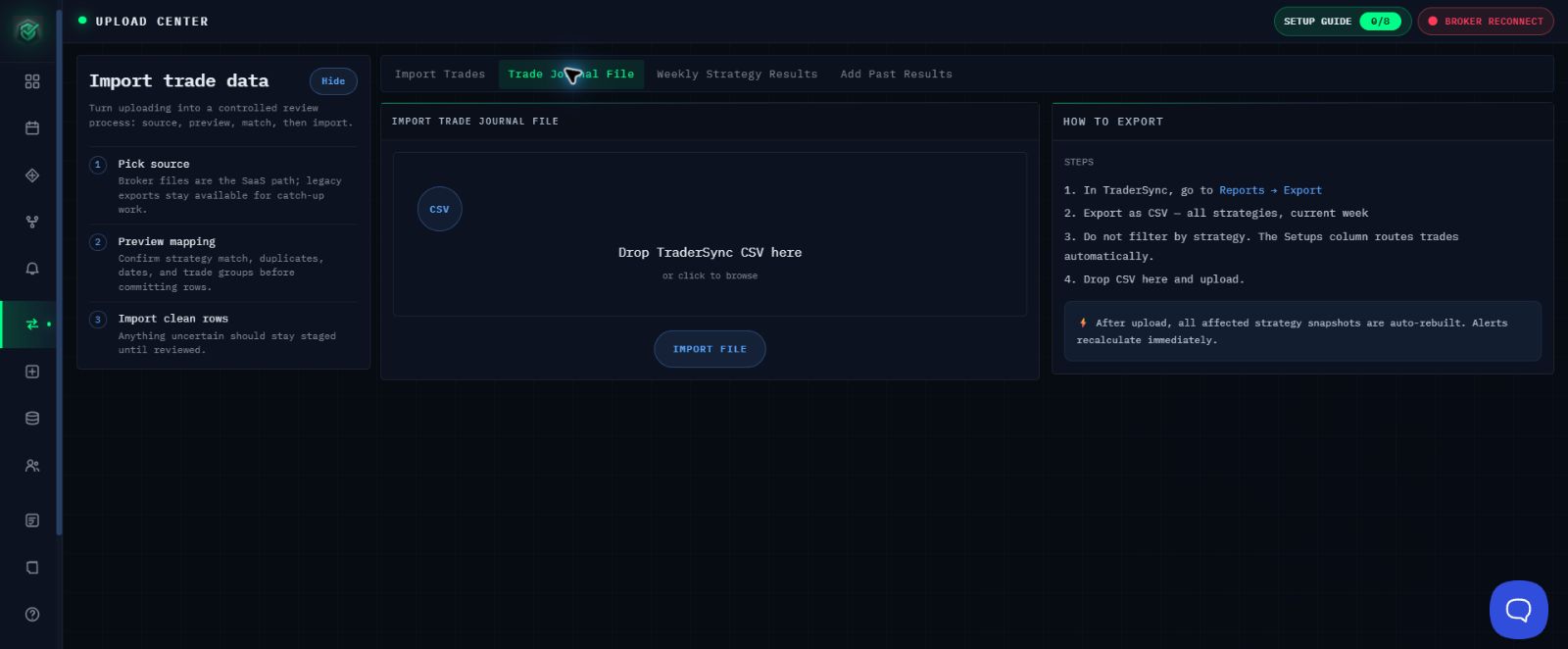
Export completed trades from the intended TraderSync account and keep the CSV unchanged. TraderSync upload is a direct import, not a staged preview.
Before You Import
- In TraderSync, open Reports → Export.
- Select CSV, the intended date range, and the intended setups.
- Confirm the export contains only the completed trades you intend to add.
- Keep the CSV unchanged.
Import the File in AlgoLedger
- Open Import Trades.
- Select the Trade Journal File path.
- Select the unchanged TraderSync CSV.
- Confirm the displayed file name is correct.
- Use Import File once. This posts the file directly for import; there is no staged review screen.
Confirm Success
The import is complete only when AlgoLedger shows TraderSync upload complete. Setups route automatically. Open the intended strategy and confirm the expected trades appear in the correct date range. Affected snapshots rebuild and alerts recalculate after upload.
If Something Does Not Match
Do not upload the same file repeatedly. Confirm the TraderSync account, date range, export type, file name, and exact visible result. Contact support@mail.algoledger.io before retrying. Support will review the visible result and help determine whether it is safe to try again.