
Fix Missing or Unmatched Trades Before Importing
Use this guide when a trade is missing, unmatched, or blocked in the staged preview. Compare the preview with your original report before approving the import.
Find the Problem
- Open Import Trades and select the appropriate import path.
- Open the staged preview without committing rows.
- Find the missing, unmatched, or blocked group and record its exact visible message.
- Compare the source account, report type, date range, market, quantity, and completed-trade status with the original report.
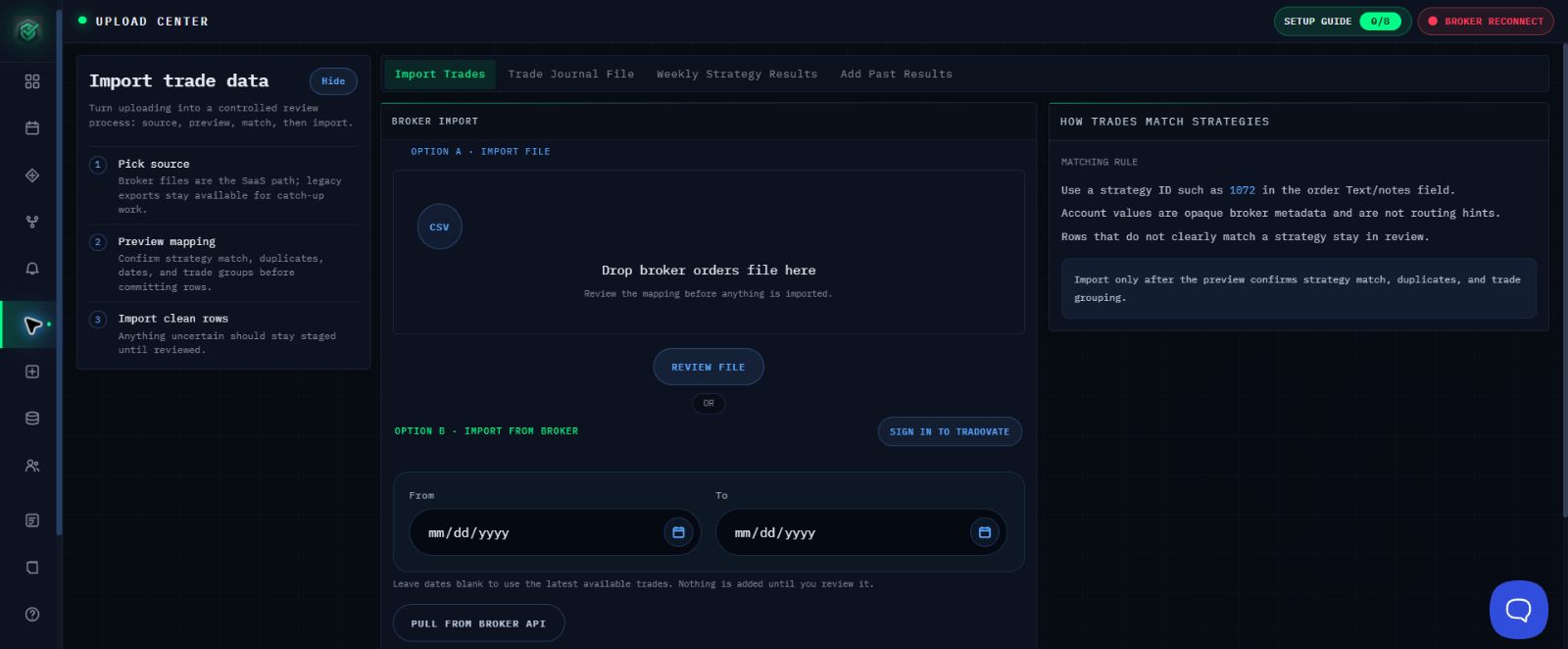
Use the Visible Recovery
- If the date range or source is wrong, create a new completed-trades export from the intended account.
- Stage the corrected export again.
- Confirm the intended active strategy is displayed. Tradovate broker Text may assist auto-detection, but do not edit source Text.
- Use Assign or Reassign Selected Trades only for a verified destination.
- Leave an ambiguous group staged or use Mark Do Not Import.
- Continue only when every visible integrity check passes.
Confirm Success
The corrected preview shows the expected completed trade, the intended strategy destination, and the correct date, direction, quantity, and grouping.
If the Trade Is Still Missing
Contact support@mail.algoledger.io with the safe file name, source type, date range, row or group, intended strategy name, exact message, and a redacted screenshot. Support will compare the safe details with the visible error and guide the next step.
Continue
Review Check Trades Before You Import.