
Match Imported Trades to the Correct Strategy
Use the staged preview to confirm where each trade will go. Match only what you can verify on the screen, and do not guess when two strategies look similar.
Review the Match
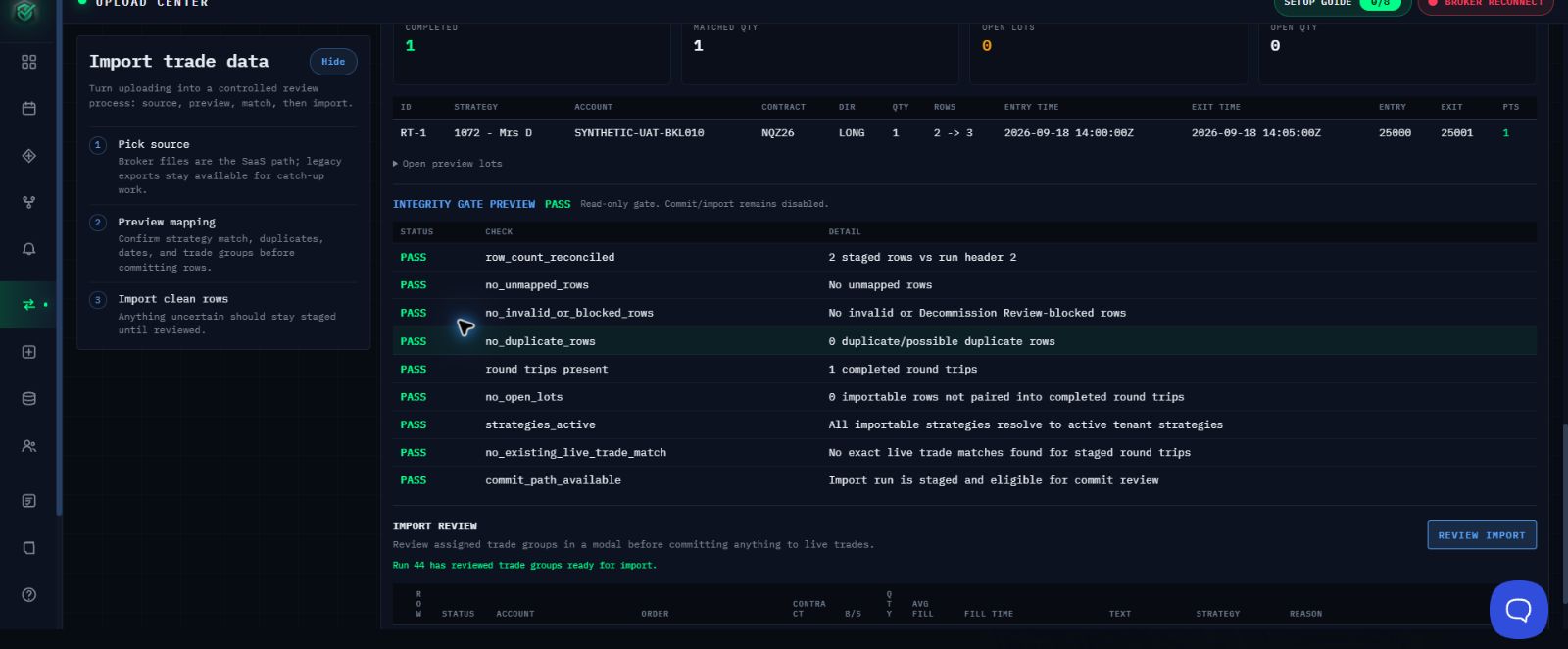
- Open the staged import preview.
- Compare the source account, date, market, direction, quantity, and entry and exit times with the intended strategy.
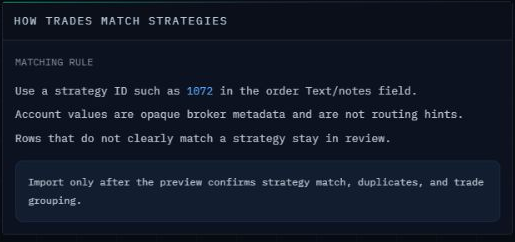
- Confirm the displayed strategy assignment is the intended destination. Tradovate Orders may auto-detect a strategy from broker Text when available; you do not need to edit source Text.
- Assign the group only when the displayed trade details and strategy destination both match what you expect.
- Use Assign or Reassign Selected Trades when a verified manual correction is needed.
- Leave an ambiguous group staged or use Mark Do Not Import.
- Continue only when every displayed integrity check passes.
Confirm Success
After the import succeeds, open the intended strategy and confirm the expected trades appear there. If they appear under a different strategy, stop and contact Support before making another change.
If the Match Is Unclear
Contact support@mail.algoledger.io with the safe file name, row or group, intended strategy name, and a redacted screenshot of the visible mismatch.
Continue
Review Check Trades Before You Import.