
Check or Connect Tradovate in Upload Center
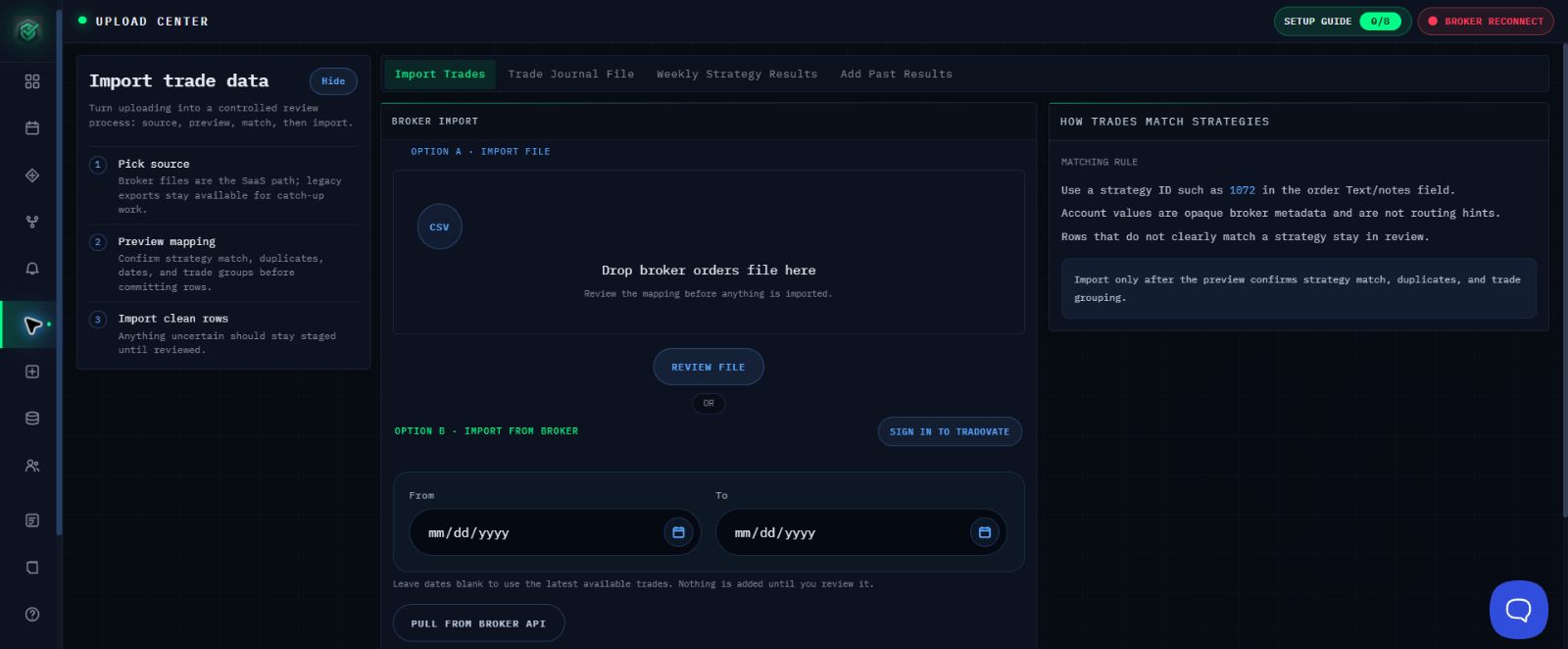
Use this guide to check your Tradovate connection. Current states include Broker Connected, Broker Reconnect, and Broker Not Connected, together with Authentication complete/required and Data ready/not ready.
Check the Connection
- Open Import Trades.
- Find Option B - Import from Broker and check the connection, authentication, data, and environment messages shown.
- If the intended Demo or Live environment is unavailable after one controlled attempt, stop reconnecting and use the file-upload workaround.
- Export completed orders from the intended Tradovate environment.
- Use Option A - Import File to select the Tradovate Orders CSV.
- Review the staged trades before approving any import.
Expected Result
Your Tradovate export appears in the Option A review screen. Trades are not added until you review and approve the import.
If the Workaround Fails
Contact support@mail.algoledger.io with the safe environment label, date range, file name, and exact visible message. Support will use the visible message to help determine whether the connection or file needs attention. Never send passwords or authentication codes.
Continue
Use Prepare a Tradovate Trade Import and Check Trades Before You Import.