
Prepare a Tradovate Trade Import
Use a Tradovate Orders CSV when the intended Tradovate connection or environment is unavailable. If Option B selects the wrong Demo or Live environment in your current session, stop after one controlled attempt and use Option A - Import File.
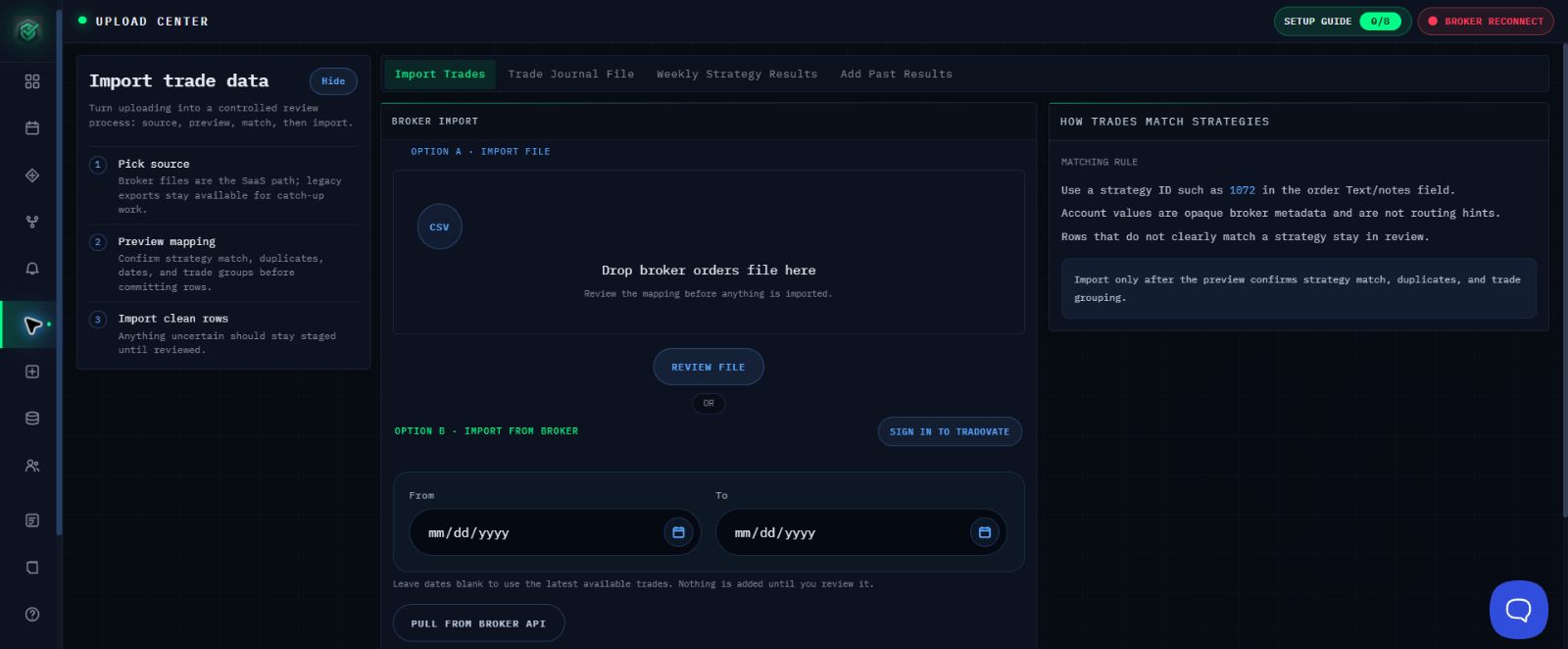
Use the File-Upload Workaround
- Export completed orders from the intended Tradovate environment for the required date range.
- Keep the Tradovate Orders CSV unchanged.
- Open Import Trades.
- Under Option A - Import File, select the export.
- Confirm the file name and select REVIEW FILE once.
- Review the account, contract, direction, quantity, dates, duplicates, unmatched rows, blocked rows, and completed groups.
- If a group does not look right, leave it staged so it is not added to your records.
- Use MARK DO NOT IMPORT for excluded groups.
- Select REVIEW IMPORT only after every visible integrity check passes.
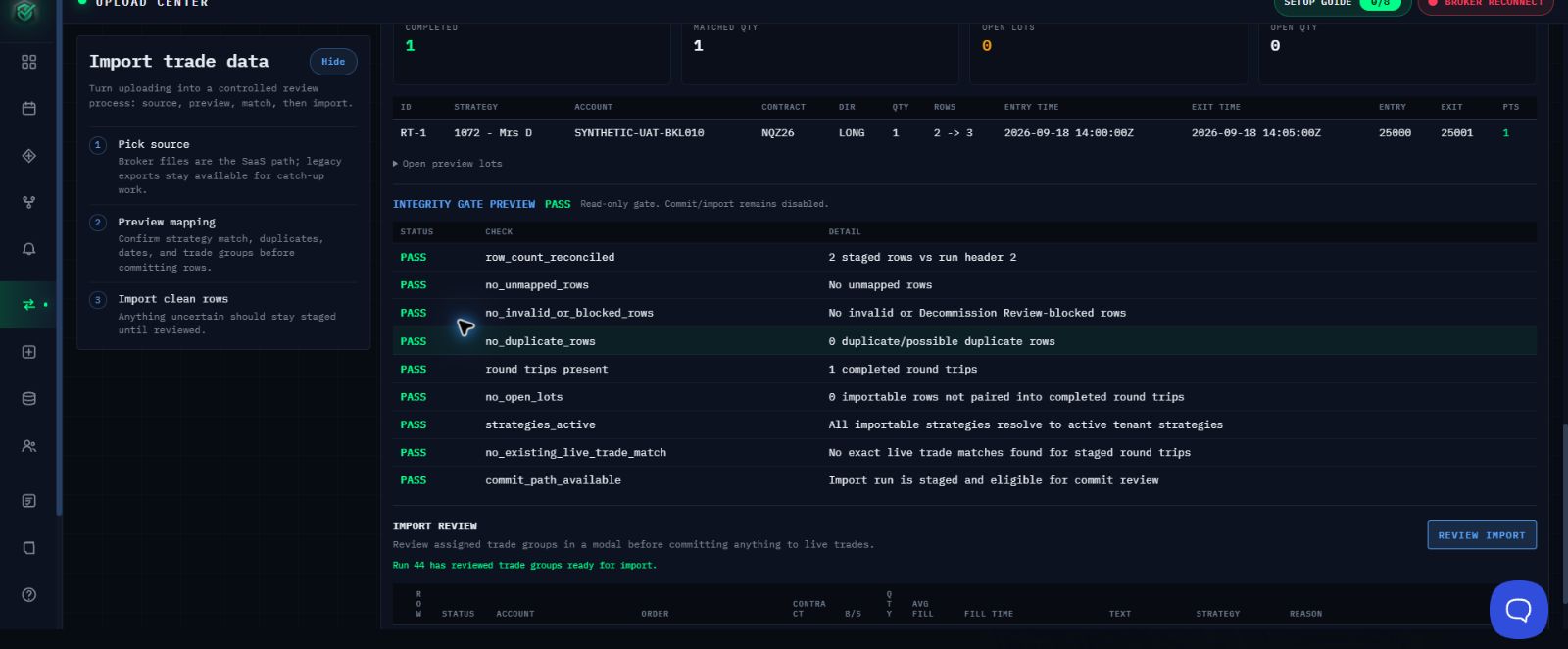
Confirm Success
Confirm COMMITTED with the expected trade count, then open the intended strategy and verify the imported trades.

If the File Is Rejected
If the file is rejected, stop and check whether the first attempt added any trades before trying again. Contact support@mail.algoledger.io with the safe environment label, file name, date range, and exact visible message. Support will review the visible error and help you choose the next safe step.
Continue
Use Prepare and Import a Broker CSV and Check Trades Before You Import.