
Fix a Broker Connection Status
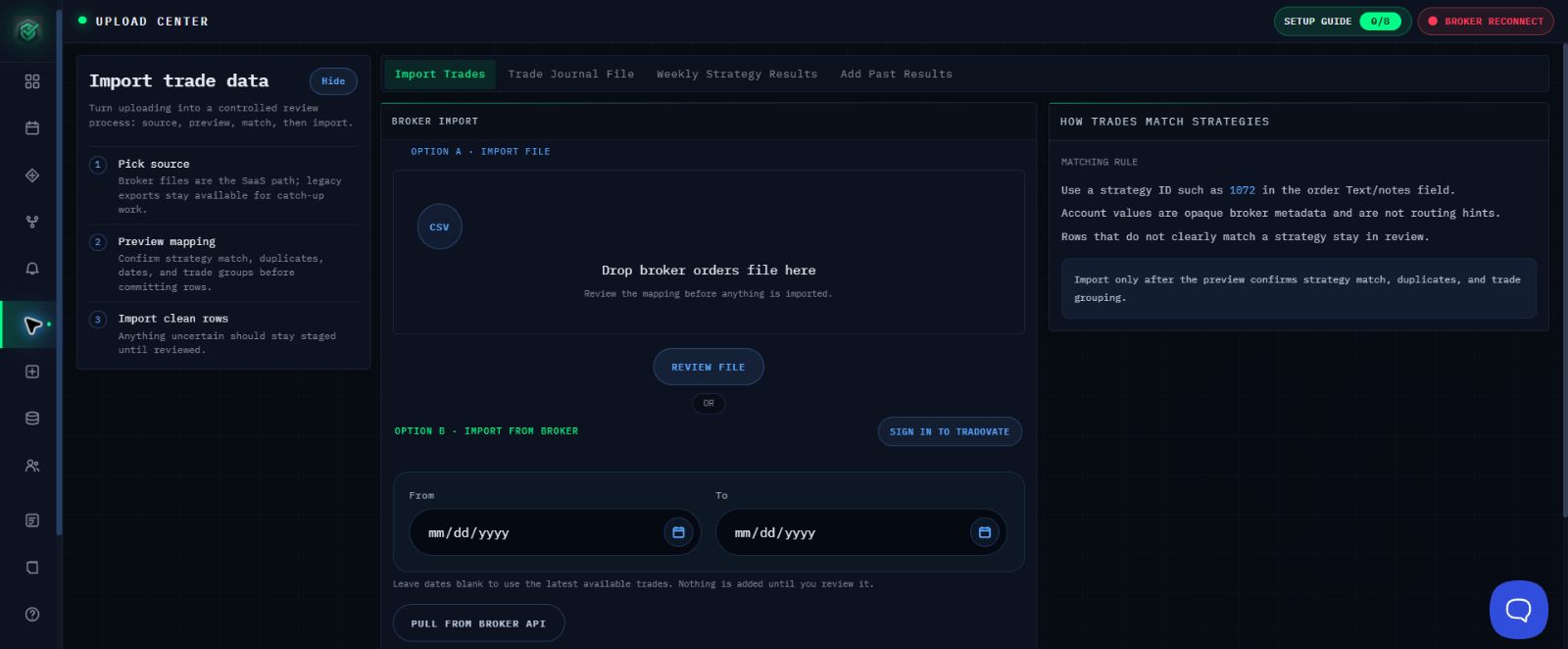
Use the status shown in Import Trades to choose the next safe step. You can use the file-upload workaround without contacting Support first.
Follow the Status
- Read the connection status.
- Follow the matching action below.
- As safety guidance, stop after one unsuccessful connection or reconnection attempt.
- Use Option A - Import File when the intended connection is unavailable.
If the Page Says Checking connection...
Wait for the check to finish before selecting another control.
If Broker Not Connected Appears
Use the available sign-in control once. If authentication is rejected or the intended environment is unavailable, use Option A.
If Broker Reconnect Appears
Reconnect once. If the same badge returns, stop repeating the authorization and use Option A.
Expected Result
You should end with either the intended broker connection or a file staged in Option A for review. Staging a file does not import it.
If the Status Still Does Not Make Sense
Contact support@mail.algoledger.io with the time, safe environment label, and exact visible message. Support will review the exact message and help you decide whether another connection attempt is appropriate.
Continue
Use Prepare and Import a Broker CSV and Check Trades Before You Import.